Post
Follow
Automated Patient Appointment Reminder Calls from Allscripts Pro with 1-800 Notify
=========================================================
IMPORTANT: THIS ARTICLE IS OUTDATED,
PLEASE SEE THE NEW VERSION HERE:
https://1800notify.zendesk.com/hc/en-us/articles/204290029
How to send patient appointment reminders from Allscripts Professional. This article shows you how to send patient appointment reminder calls from your system using the 1-800 Notify (www.1800notify.com) service.
NOTE: The attached .PDF file shows this procedure with all screen shots.
NOTE: If these steps don't seem to work for your version of Allscripts, then look at another Allscripts procedure for AllScripts MyWay: https://1800notify.zendesk.com/entries/23191808-Allscripts-Export-to-Microsoft-Excel-xls- .
FILE FORMAT: CSV (Comma Separated Variable)
HOW TO GET THIS DONE:
- Login to **Allscripts Professional

**
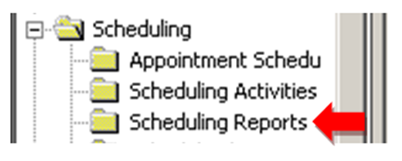
2. In the PRACTICE MANAGEMENT section of the left column, click on Scheduling Reports in the Scheduling section.
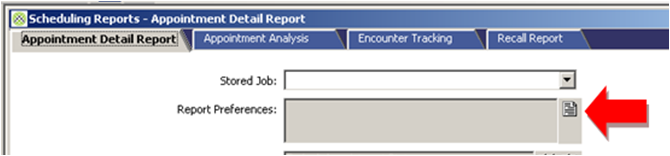
- In the main window, click the box next to Report Preferences:
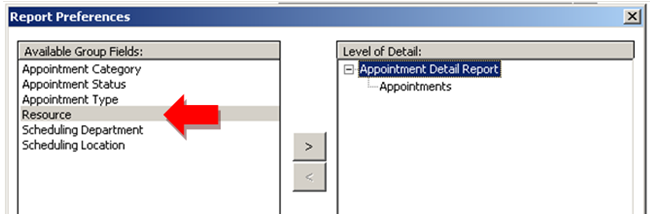
- Double-click on Resource in the left column to move it into the right column.
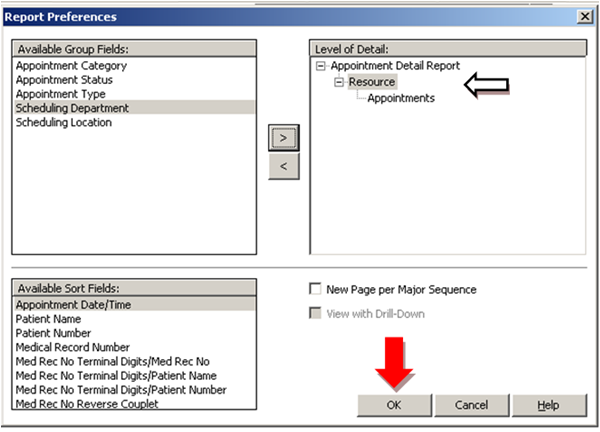
- Now, you should see the Resource in the right column, click OK.
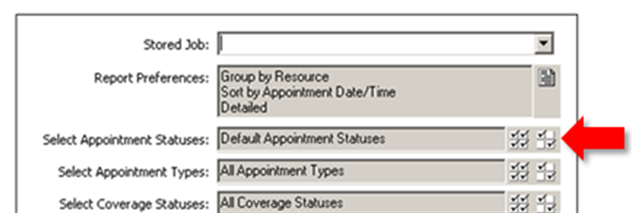
- Click the box next to Select Appointment Statuses:
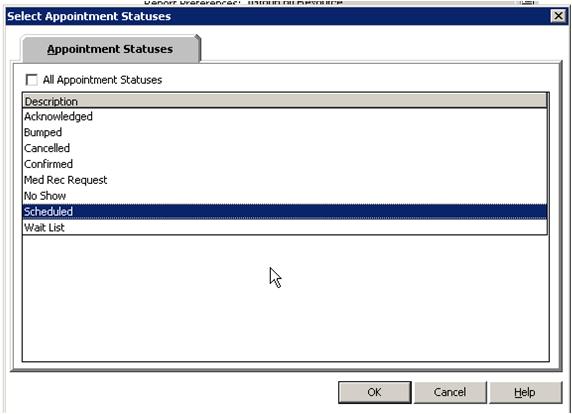
- Make sure to select Appointment Statuses for only Scheduled Appointments.
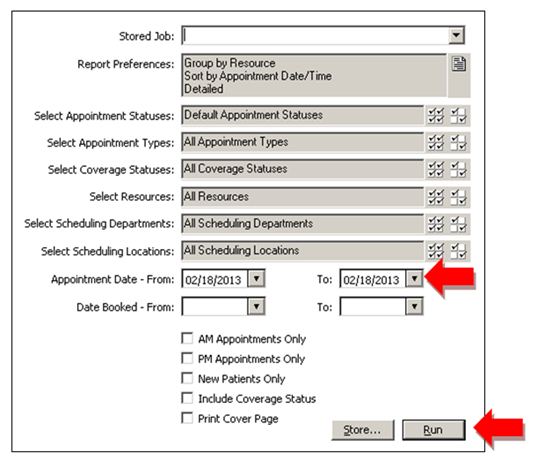
- Now Select the Appointment Date – From **and To**, then click **Run
**
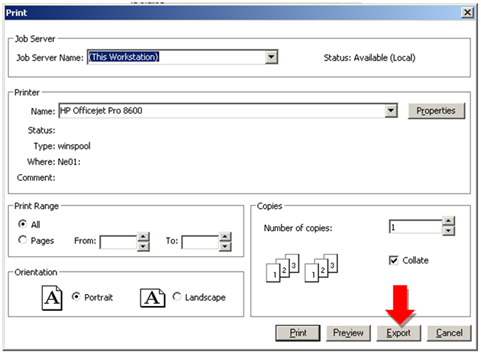
9. Click the Export button at the bottom of this window:
10. In the Select File Export Name window, click the button with the three dots to select the folder location where you want to store the file and set the file name.
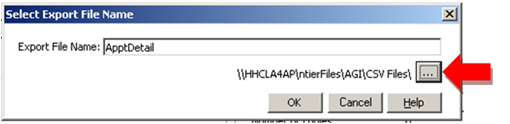
- Click My Documents in the left column and change the file name to the date of the exported schedule. For example if you exported Feb 18, 2015, then name the file 021815 (TIP: Don’t use the /, because you cannot put the slash “/” into the file name). Click Open.
- Now, confirm everything looks correct the Export File Name and the folder location under it – should end in “*My Documents\”, then click the **OK* button.
YOU ARE DONE WITH THE EXPORT – NEXT, LOGIN AND UPLOAD THE FILE TO YOUR ACCOUNT ON THE 1-800 NOTIFY WEB SITE: www.1800notify.com.
Learn how to upload and schedule calls using this related article:
Please sign in to leave a comment.